

Prerequisites
- Portkey API Key from app.portkey.ai/api-keys
- Provider slug from Model Catalog
- ToolJet Account with Marketplace Plugin access
Watch Demo
Quick walkthrough of ToolJet’s UI components
Setup
1
Install Portkey Plugin
Go to ToolJet Dashboard → Plugins → Marketplace → Search Portkey → Install.
2
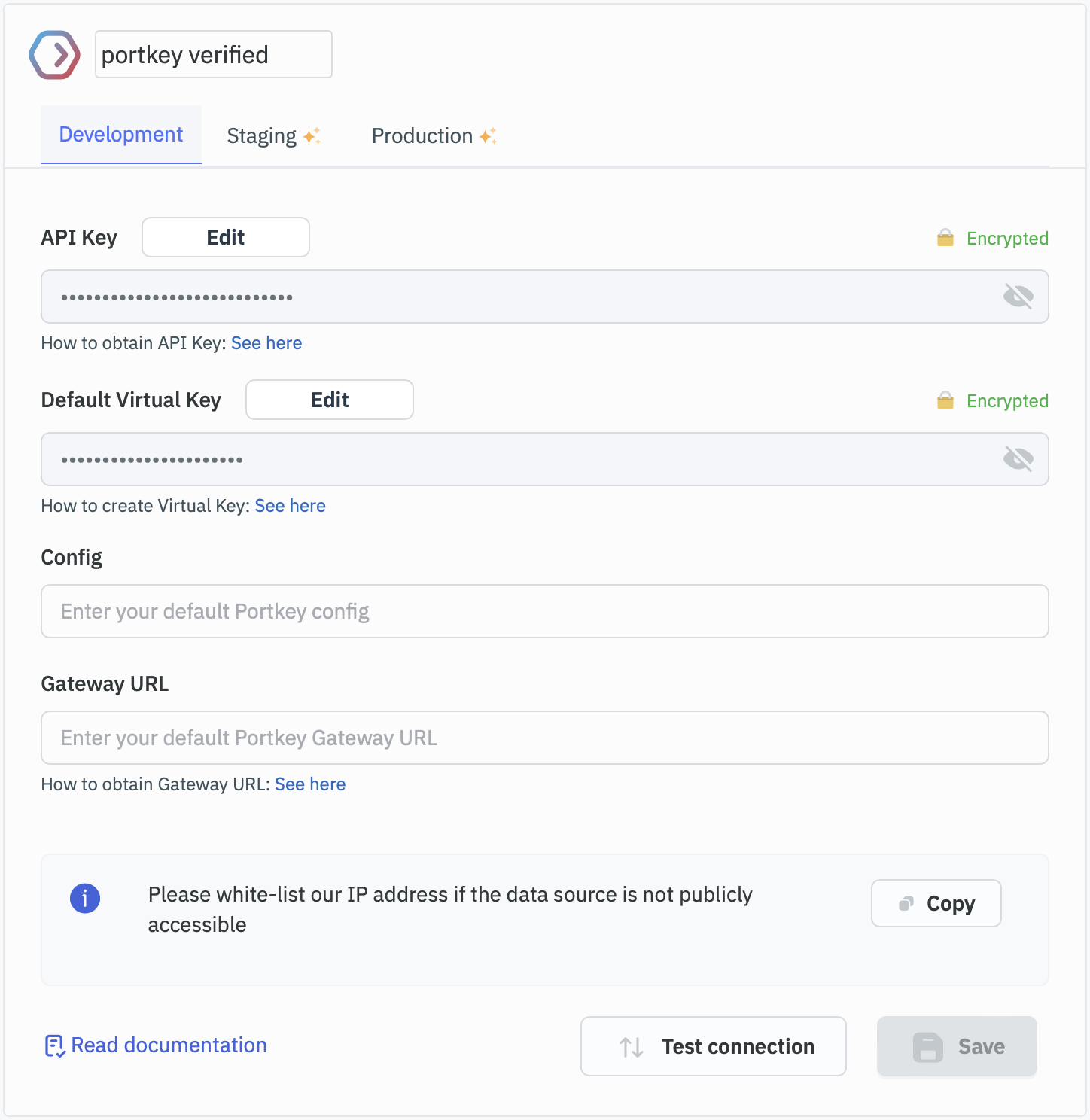
Add as Data Source
- Go to Data Sources → Plugins → Add Portkey
- Enter:
- Authorization: Your Portkey API Key
- Default Provider: Your provider slug (e.g.,
@openai-prod)
- Test the connection
3
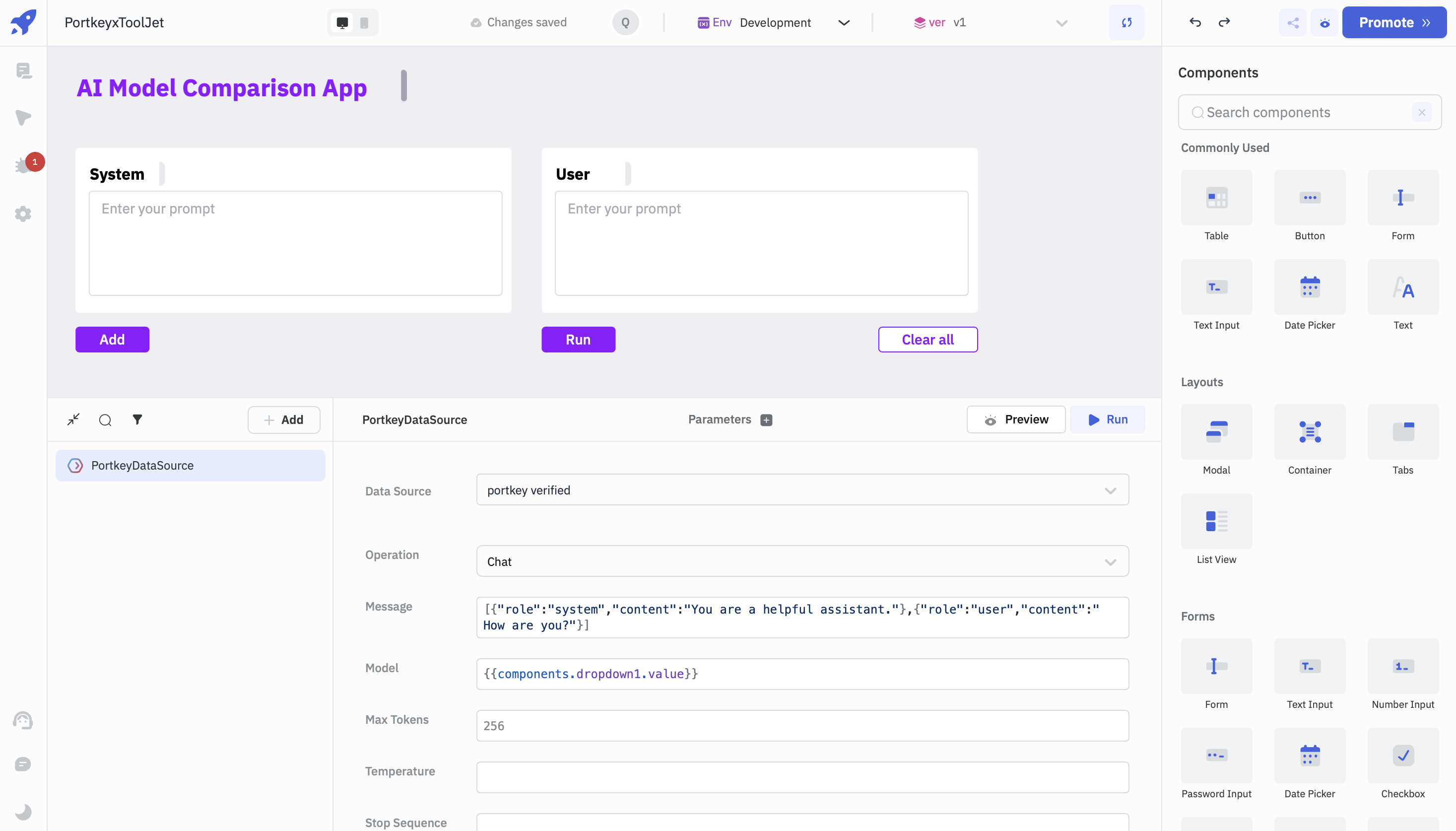
Use in Your App
- Go to Queries → Add Datasource → Select Portkey
- Choose an operation (Chat, Completion, Embedding, Prompt)
- Run to verify
4
Connect to UI
- Add Text Input and Button widgets
- Configure Button’s onClick to execute the Portkey query
- Display results in a Text Box
Supported Operations
Chat
Chat
Generate chat completions from messages.Parameters: Messages, Model, Max Tokens, Temperature, Stop Sequences, Metadata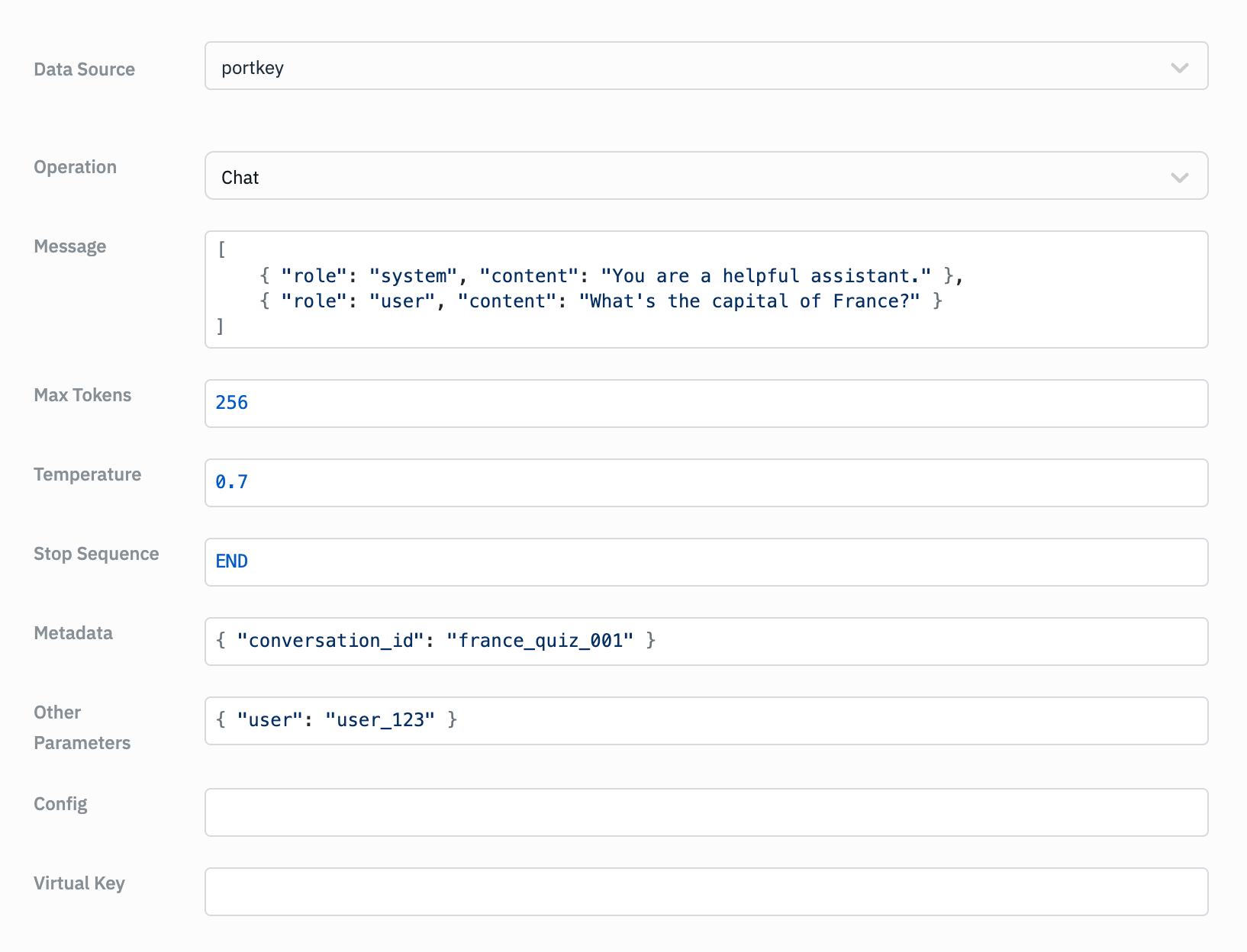
Completion
Completion
Generate text completions from a prompt.Parameters: Prompt, Model, Max Tokens, Temperature, Stop Sequences, Metadata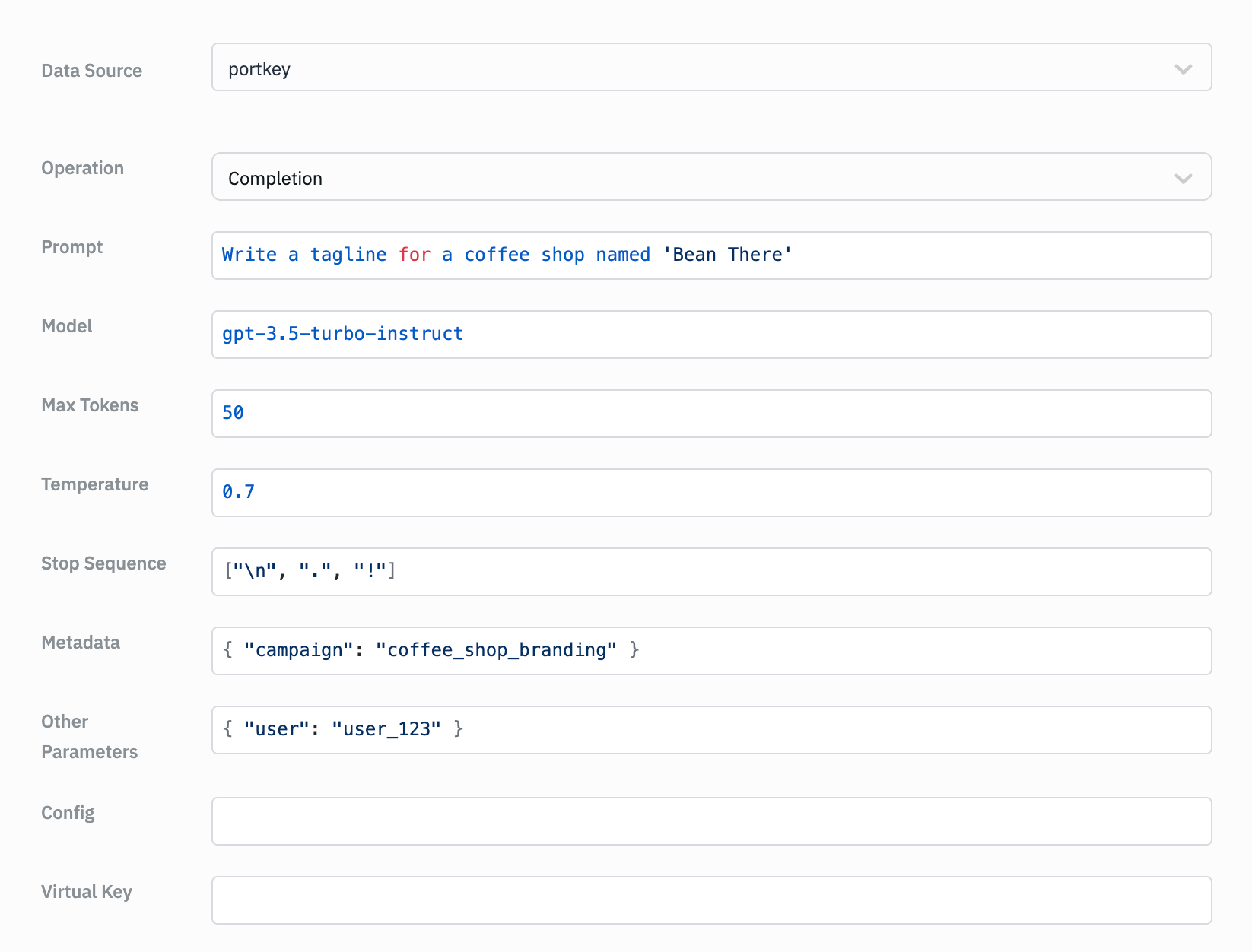
Prompt Completion
Prompt Completion
Use pre-defined prompts from Portkey.Parameters: Prompt ID, Variables, Parameters, Metadata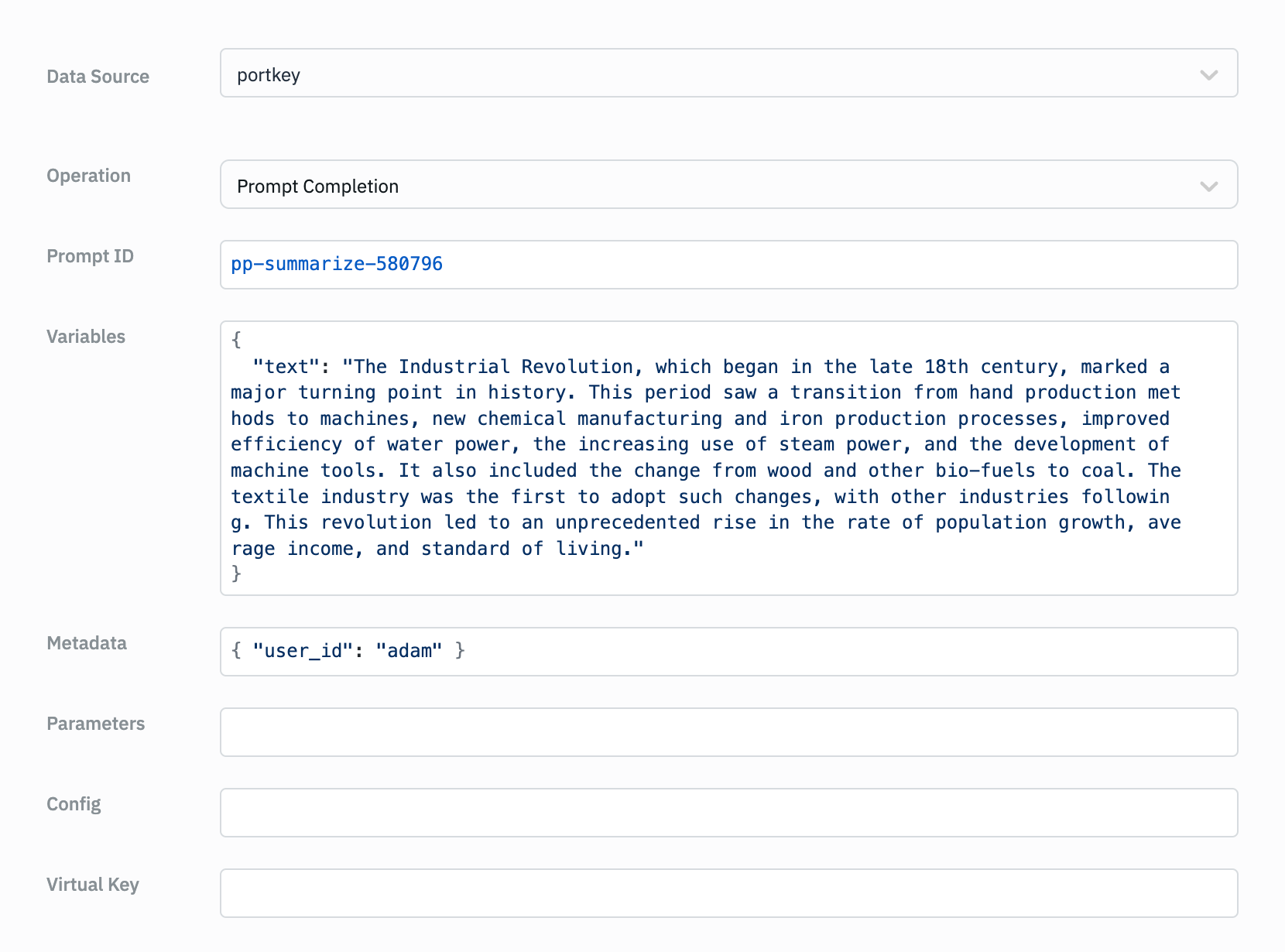
Create Embedding
Create Embedding
Generate embeddings for text.Parameters: Input, Model, Metadata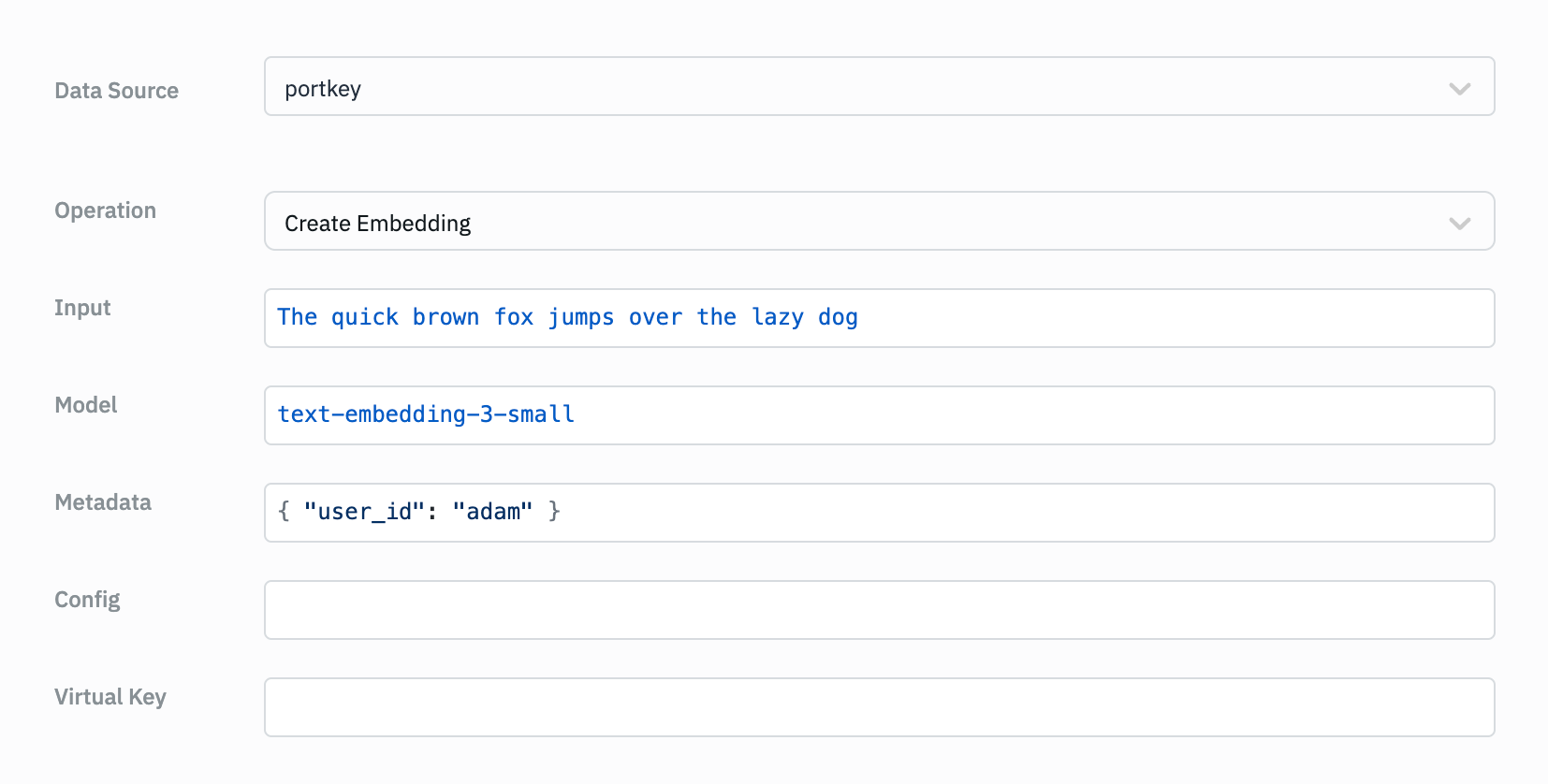
For all operations, you can optionally specify a Config or override the default Provider.
Troubleshooting
Next Steps
Model Catalog
Set up providers
Configs
Add routing and caching